
How to Make a Bad Times AI Video From One Photo
To make a Bad Times AI video, upload one portrait, choose the 15- or 30-second kitchen performance, and generate the vertical clip. The template handles the gestures, camera movement and soundtrack.
Open the Bad Times AI Video Generator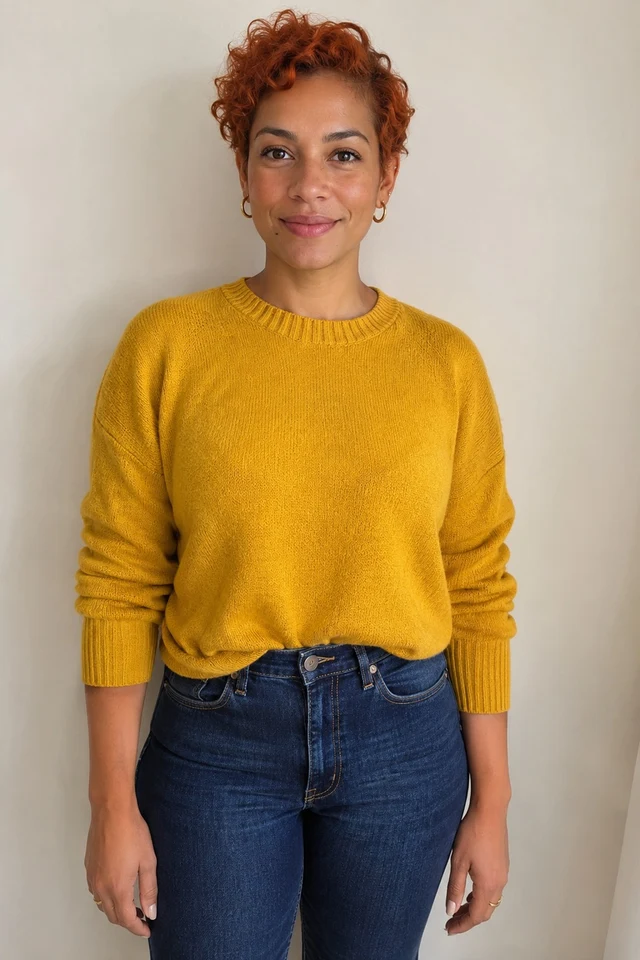
Pick a portrait that will hold up in a close-up
Choose a sharp photo of one person looking toward the camera. Use even lighting and include their shoulders, hair and the clothing you want to keep. A face hidden by hands or heavy shadow gives the generator less to work with when the performer walks toward the camera. Use a photo you have permission to upload.
Upload a JPG, PNG or WebP up to 10 MB.
Choose the 15- or 30-second version
Pick 15 seconds for the short cut or 30 seconds for the full sequence. The example player switches to match your selection. Both versions use a vertical 9:16 frame, so the clip already fits the shape of TikTok, Reels and Shorts.
To preserve a specific feature, open Appearance instructions and name the detail. For example, ask the AI to keep your round glasses or the stripes on your shirt.
Generate, check and download your video
- Sign in with Google or Apple. The studio checks your paid Vismuse credits for the edit you picked. If you need more, you can compare credit packs.
- When the video finishes, watch it through the final close-up. Check whether the face and clothing still look right and whether the gestures line up with the audio.
- Select Download MP4 from the result page. You can reopen your video later from Recents or My videos.